How to Set Up an AI System to Auto‑Generate Instagram Reels from Customer Photos
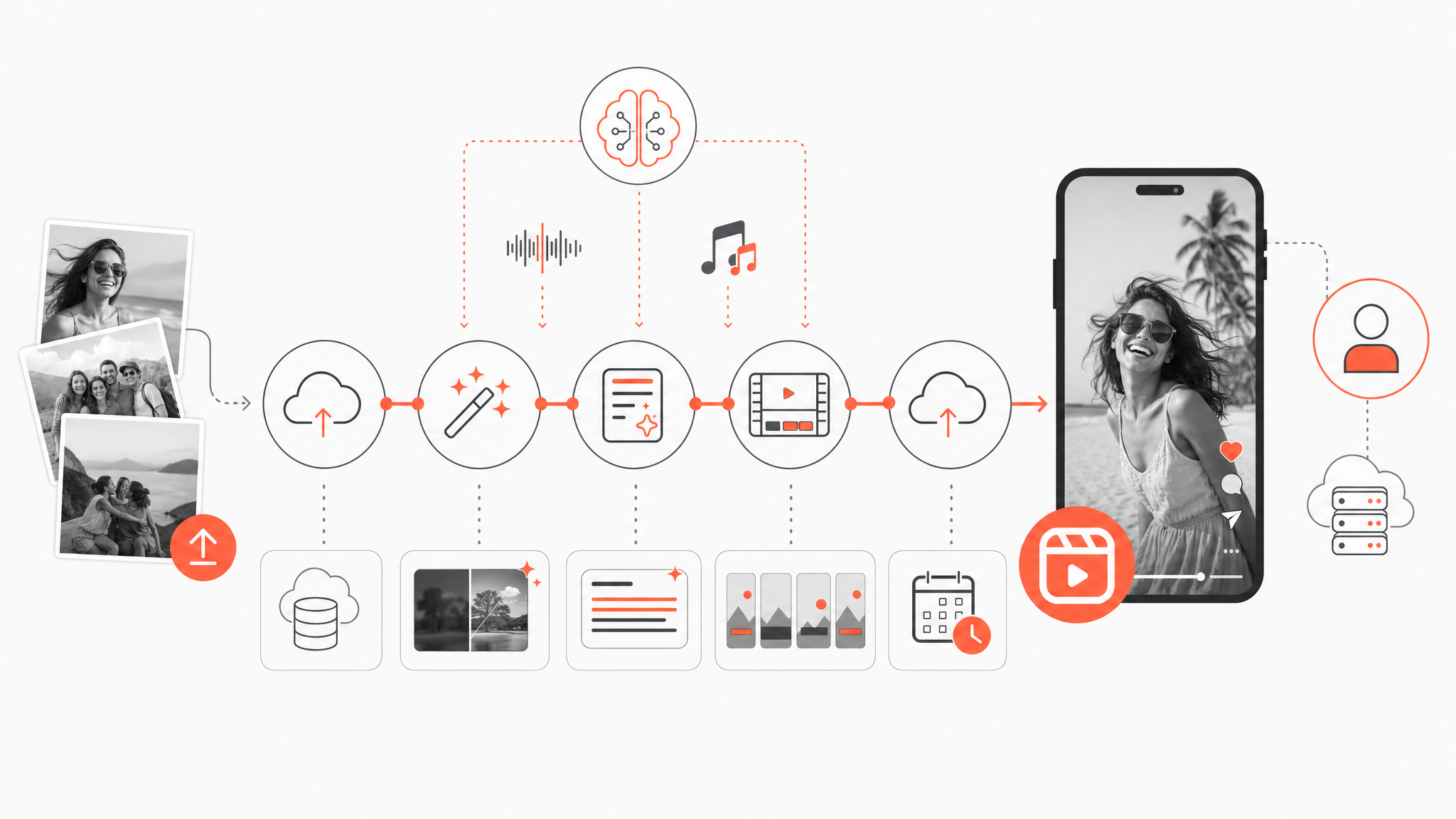
If you want to auto-generate Instagram Reels from customer photos, set up five pieces end-to-end: intake of photos and metadata, asset storage, AI content generation (scripts/captions/music), video assembly in a vertical 9:16 template (exported at 1080×1920 px), and automated publishing through the Instagram Graph API using a Business or Creator account (personal accounts aren’t supported). Authentication typically uses the platform’s Graph API with a permanent or long‑lived access token; you upload via /media and publish via /media_publish.
What is an “AI system to auto‑generate Reels from customer photos”?
It’s a workflow where customer images and basic inputs are captured once, then AI creates the script, caption, and music, assembles a 9:16 vertical video using a reusable template, and publishes it to Reels automatically via the Instagram Graph API. In many teams, a spreadsheet-like database controls each Reel (one row per video) and a no‑code automation platform orchestrates the steps.
What are the five building blocks I need?
- Intake: A form or landing page where customers upload photos and basic information.
- Asset storage: A cloud drive or bucket for images and rendered videos, plus a table/spreadsheet holding image URLs and metadata.
- AI content generation: Models that draft hooks, scripts, captions, hashtags, and optionally voiceover text.
- Video assembly: A video automation tool that renders a 9:16 Reel from a template by swapping in images, text overlays, clips, and audio.
- Automated posting: The Instagram Graph API, called from a server or no‑code automation, to publish Reels to a Business or Creator account (personal accounts can’t programmatically publish).
Table: Building blocks, common options, and notes
| Block | Typical options | Notes |
|---|---|---|
| Intake | Web form, CRM trigger, shared upload folder | Store photo URLs and consent flags with each submission. |
| Storage | Cloud drive/bucket + spreadsheet/DB | Keep public or signed URLs for images and track statuses, timestamps, and errors. |
| AI content | Text models for hooks/scripts/captions; optional audio generation | Provide minimum inputs so outputs stay on-brand. |
| Video assembly | Template-driven video API or editor | Use a 9:16 template; export at 1080×1920 px; allow a human review pass. |
| Posting | Instagram Graph API | Authenticate, upload via /media, publish via /media_publish with a valid token. |
How should I capture and store customer photos and metadata?
- Use a simple upload form or landing page that writes to your spreadsheet/DB and to cloud storage. Store the public or signed image URLs so the video step can fetch assets.
- Track fields per Reel such as image URLs, script text, overlay text, captions, status flags, timestamps, and error logs; automations read and update these fields for monitoring and retries.
- Make sure you have explicit rights and consent to use customer images for marketing, especially if faces are visible. Many teams handle this with clear terms and opt-in checkboxes on the upload form (a common legal best practice).
How do I structure inputs so AI can write effective short‑form scripts and captions?
Provide minimum inputs per Reel so AI has guardrails:
- Offer: what you sell (and price range if relevant).
- Audience: who it’s for and the key problem.
- Promise: one realistic outcome.
- Proof: testimonial or result photo.
- CTA: exactly one action.
- Brand constraints: colors, phrases to avoid, compliance boundaries.
Best‑practice frameworks for direct‑response Reels: Hook (0–2s), short value section (e.g., 3 bullets), proof (product in action or testimonial), and a single CTA. Many teams generate multiple hook variations—around 10—and keep only the strongest. For voiceovers, scripting small natural imperfections (a brief stumble, a sentence fragment, specific numeric detail) often makes AI voices feel less synthetic in short videos.
How do I turn a customer photo into a Reel automatically?
- Template the video: Many video automation tools let you design a Reel template once and pass images, text, and audio via API, CSV, or no‑code connectors to render batches automatically.
- Photo animation: Some AI reel makers can animate a single image or multiple product photos into multi‑scene vertical videos with text overlays and auto‑selected or generated music; others provide a photo‑to‑Reel service where you upload a photo, choose a motion template, and receive a short video with physics‑aware motion applied to the subject. These systems commonly support selfies, full‑body shots, stylized characters, or mascots, and generation times are often under a minute for a typical clip.
- Editing pass: Many tools provide timelines where you can tweak scenes, fonts, overlays, and audio after auto‑generation but before export, which is useful for compliance and brand safety.
- Export format: Reels are vertical with a 9:16 aspect ratio; export at 1080 × 1920 px for best quality.
What does the video assembly step look like programmatically?
- Define placeholders in a vertical template: hero image, overlay text, secondary images, music, durations.
- Feed data by row: A “video generation spreadsheet” pattern is common—each row defines one Reel with columns for image URLs, titles/subtitles, durations, fonts, and music. The renderer outputs one video per row.
- Supply audio: Many systems can add or auto‑generate background music and sound effects from built‑in libraries or external audio generation/stock sources.
How do I auto‑post to Instagram Reels?
- Use the Instagram Graph API via a Facebook app connected to an Instagram Business or Creator account (personal accounts aren’t supported for publishing).
- Authenticate with a permanent or long‑lived access token.
- Upload the video using the /media endpoint, then publish it using /media_publish.
- If your video is stored in cloud storage and served through a webhook, ensure the URL is publicly accessible to the API and that the Content‑Type header is correct, which avoids “Media download has failed” issues.
- Log the media ID, publish status, timestamps, and any error messages back into your spreadsheet/DB so you can retry failed runs.
Can I do this without writing code?
Yes. A common no‑code pattern is: design a vertical video template in a video automation tool; connect a spreadsheet of inputs; let the tool auto‑generate multiple Reels by swapping images, text, and audio. No‑code automation platforms are widely used to connect sources (forms, CRMs, drives) to AI models for script/caption generation and to video tools, then to the Instagram Graph API for posting.
What does a robust no‑code architecture look like end‑to‑end?
- Trigger: A form submission or CRM update with a customer photo.
- Data storage: A spreadsheet/DB row is created; the image lands in a cloud drive/bucket; the row stores the asset URL.
- AI content generation: An AI model creates 10 hook variants, a short script (hook → 3 value bullets → proof → CTA), a caption, and hashtags.
- Video rendering: A video template service assembles the Reel from the image(s), overlays, and music; export at 1080×1920 px.
- Human review (optional but recommended): Approve/reject and edit overlays or scenes.
- Posting: Automation uploads the video to the Graph API’s /media and publishes via /media_publish using a long‑lived token.
- Logging: Write creation time, modification time, approval status, final video URL, and any error details back to the spreadsheet/DB.
Are there code‑centric patterns too?
Yes. Some teams import a prebuilt text‑to‑video pipeline that uses an AI model for content generation, a cloud drive and storage bucket for media, and serverless compute with pub/sub for processing. Another published approach demonstrates pulling a video from a cloud drive, generating a caption with an AI model, logging metadata to a database, and posting via the Instagram Graph API end‑to‑end.
Quality, compliance, and scaling tips
- Keep assets reachable: Store public or signed URLs for all inputs so downstream video tools and the Graph API can fetch them.
- Review and edit: Maintain a human‑in‑the‑loop editing pass using the tool’s timeline before export when needed.
- Track everything: Use status flags, timestamps, error logs, and final URLs per video for monitoring and retries.
- Consent and rights: Use clear terms and opt‑in on your upload form to secure permissions to use customer photos in marketing.
- Hooks first: Generate many hooks and keep the best; this materially improves short‑form performance.
- Voiceover realism: Add subtle imperfections and specific details to reduce the synthetic feel.
Quick checklist to get live
- Build an upload form with consent language; write photo + metadata to a spreadsheet/DB and cloud storage.
- Create a vertical 9:16 Reel template and define placeholders (image, overlays, scenes, music).
- Configure AI prompts to produce 10 hooks, a concise script, and a caption with hashtags.
- Wire a no‑code or scripted workflow to pass row data (image URL, text, music) into the video renderer and export at 1080×1920 px.
- Add an optional manual approval step.
- Authenticate to the Instagram Graph API with a long‑lived token; upload via /media and publish via /media_publish.
- Log media IDs, publish status, timestamps, and any errors for monitoring and retries.
Frequently asked questions
- Can I auto‑post Reels to a personal Instagram account?
- No. Programmatic publishing requires the Instagram Graph API via a Facebook app connected to an Instagram Business or Creator account; personal accounts aren’t supported for publishing.
- What video specs should I use for Reels?
- Use a vertical 9:16 aspect ratio and export at 1080 × 1920 px for best quality.
- Is no‑code realistic for this?
- Yes. A common pattern is to design a template in a video automation tool, connect a spreadsheet or database of inputs, and let an automation platform feed images, text, and audio to render and then post via the Instagram Graph API.
- How do I avoid “Media download has failed” when posting?
- Ensure the video URL you give the Graph API is publicly accessible and served with the correct Content‑Type header. Many teams serve the file via a public webhook or accessible cloud URL before calling /media and /media_publish.