How to Build an AI Workflow to Turn Raw iPhone Clips into Polished UGC Video Ads
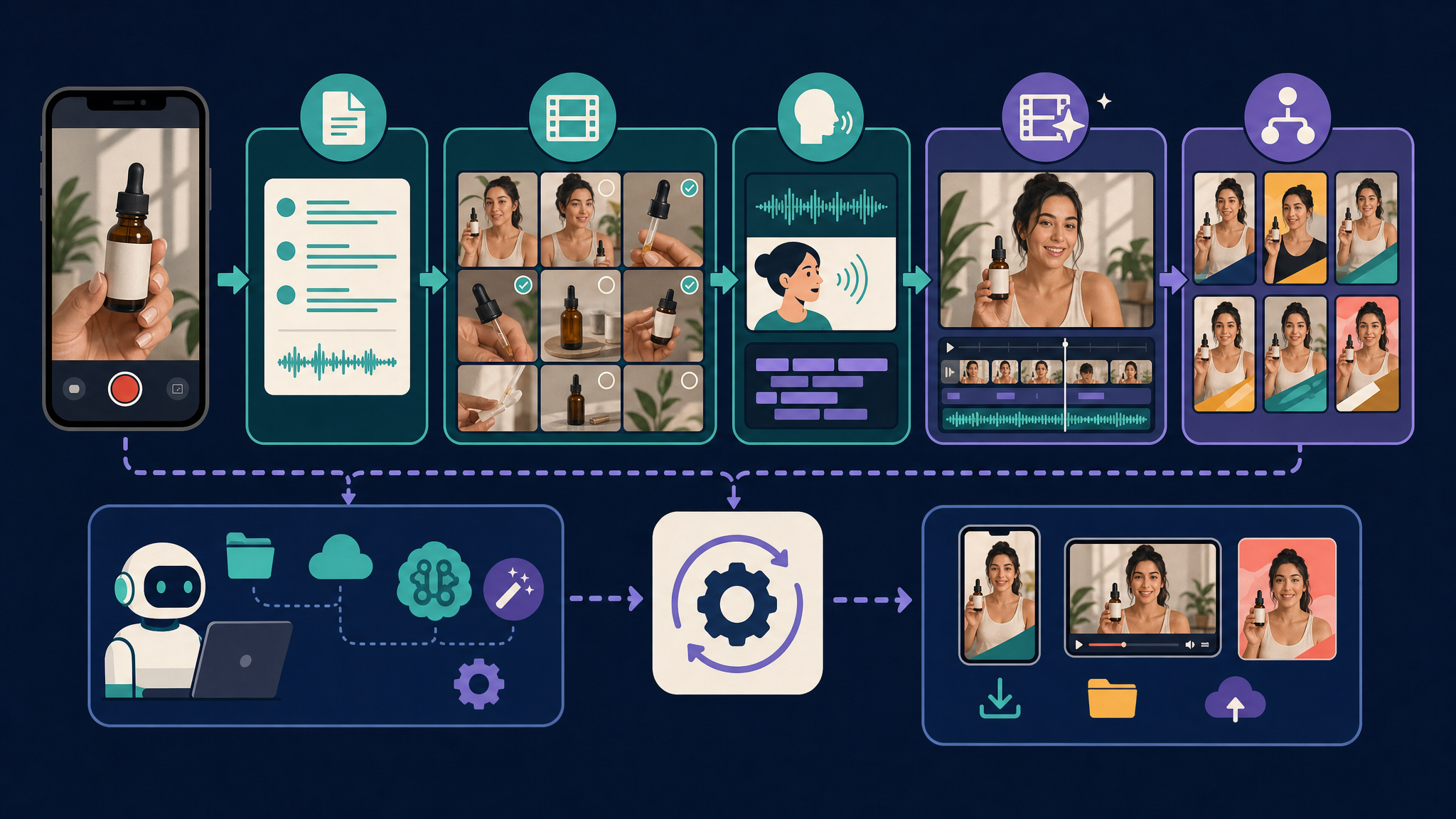
If you have raw iPhone clips, the fastest way to turn them into polished UGC video ads is to run them through a staged AI pipeline: ingest the footage, generate a UGC‑style script (hook → problem → solution → CTA), select or generate best takes, add voice and sound, edit with captions and subtle polish, then export to platform‑ready vertical or horizontal formats. You can trigger the workflow from a messaging bot, a web form, or a cloud folder, and orchestrate the steps in a low‑code automation tool. Because most viewers watch on mute, captions are non‑negotiable, and light, smartphone‑authentic editing beats heavy production.
What is a UGC video ad?
A UGC (user‑generated content) video ad is a short, casual‑feeling spot that imitates real customer footage—selfie‑style, handheld, and imperfect. It can be partially or fully AI‑assisted at any stage, including script, editing, motion, or synthetic actors. Effective versions typically follow a performance‑creative structure: hook → problem → solution (often a demo or social proof) → call to action.
What’s the minimal end‑to‑end AI workflow?
A practical build works as a pipeline of discrete stages:
- Ingest raw iPhone clips
- Generate or refine a script and structure
- Select or generate best takes/shots
- Add voice and sound
- Edit and polish (captions, transitions, grading)
- Output in platform‑ready formats
Here’s a simple mapping you can follow:
| Stage | What AI/automation does | Inputs | Outputs | Notes |
|---|---|---|---|---|
| 1. Ingest | Auto‑collect assets from a chat bot, web form, or cloud folder | iPhone clips, product images | Organized project with logs | Triggers can start the whole flow when assets arrive |
| 2. Script | LLM creates a concise UGC script with hook → problem → solution → CTA | Product info, pain points | Short, first‑person script | Keep sentences short for vertical pacing |
| 3. Shots | Auto‑select best takes or generate clips (e.g., motion transfer from a still) | Raw clips, stills, reference motion | Shot list and/or AI‑generated clips | Preserve character consistency with reference frames |
| 4. Voice/Sound | TTS or cloned voice generates VO; music bed set low | Script | Voiceover WAV/MP3 | Keep background music ~20% volume |
| 5. Edit/Polish | Add captions, subtle transitions, light color | Timeline with clips + VO | Final timeline | Use short cross‑dissolves (~0.3 s) |
| 6. Export | Re‑encode, resize, deliver | Final timeline | 1080×1920 or 1920×1080 | Captions are mandatory for muted autoplay |
How do I ingest and organize raw iPhone clips?
- Triggers that work today: a messaging bot, a simple web form, or a watched cloud folder. Dropping raw clips or product images into any of these can auto‑start the pipeline.
- Low‑code orchestrators are already used in production to run end‑to‑end UGC flows—intake, LLM calls, AI video generation, merging, and delivery back to users.
- One common template accepts product images via chat, runs image analysis and prompt generation, creates clips with a video API, then stitches them with a command‑line encoder and returns the finished ad to the same chat or to cloud storage.
- If you pass product images to vision or generative video APIs, convert the image to base64 for compatibility.
- Log every step—inputs, prompts, model versions, and render settings—so you can debug and keep outputs repeatable as tools evolve.
How should I design the script and structure?
- Use a large language model to generate the script. Provide product benefits, target audience, and any rules. Enforce the proven structure: hook → problem → solution (demo/social proof) → CTA.
- Keep it casual, first‑person, and non‑corporate. Short sentences fit fast‑paced vertical formats and sync better with TTS or human delivery.
- Generate multiple versions of the hook and CTA to test later. Many teams also analyze winning UGC ads to extract hooks, structures, and visual patterns, then feed those insights back into prompts.
How do I pick or generate the best shots?
- Some tools can auto‑select strong takes from your iPhone footage or generate missing shots.
- Motion‑transfer models can take a still character image plus a reference motion video (for example, an iPhone unboxing or talking clip) and output a new video of that character doing the same motion.
- To keep AI characters consistent across clips, extend sequences in the same tool or feed prior frames as references, then stitch in post.
- For AI “UGC‑style” imagery, prompt for smartphone context and realism: candid smartphone photo, specific demographic, everyday location, natural lighting, casual mood, slight grain, and explicitly “not a professional photo.” Practitioners also add gentle imperfections (slight motion, minor framing errors, subtle grain) so the result feels like genuine iPhone capture rather than a pristine commercial.
How do I handle voice, captions, and sound?
- Voice: Use text‑to‑speech or a cloned voice that matches your target demographic and tone. Keep the script concise to maintain natural pacing.
- Captions: Most social feeds default to muted autoplay, and roughly 85% of social videos are viewed without sound. Treat captions as non‑negotiable.
- Music: Add a low‑volume background track around 20% so it supports but doesn’t overpower the voiceover.
How should I edit so it still feels like real iPhone footage?
- Import clips in narrative order and keep transitions subtle. Short cross‑dissolves of about 0.3 seconds work well.
- Apply light color correction for consistency while maintaining a smartphone look—avoid heavy, cinematic grades.
- Add subtitles/captions and simple text overlays for key claims or CTAs.
- Use B‑roll (close‑ups and usage shots) under voiceover or over “talking head” to keep attention high and show benefits clearly.
- Export platform‑ready versions: 1080×1920 vertical for TikTok/Reels, and 1920×1080 horizontal for YouTube/Facebook.
How do I automate rendering, versions, and delivery?
- Multi‑clip approach: Many AI workflows generate several short clips (for example, around 8 seconds each) and merge them into one ad. If you request a 20‑second ad, the system might produce three ≈8‑second clips and combine them.
- Merging/encoding: A command‑line video tool can stitch clips, standardize frame rate/bitrate, and resize to vertical or horizontal.
- Variants: Tutorials show connecting the LLM‑generated script and a still influencer/product image into a video generator, then specifying how many generations to create multiple UGC variants for testing.
- Case studies demonstrate systems that: accept a product name/image, analyze the image with a vision model, build an ideal influencer persona, generate multiple scripts, and output several 12‑second, 720×1280 test videos with an AI video model.
- Delivery: End‑to‑end automations often deliver the rendered ad back to a chat, email, or cloud storage, and some optionally auto‑post or notify a client.
Can I do it all on mobile?
- Many creators use a mobile editor as the last‑mile assembler—to add text overlays and subtitles, apply light color grading, and export in vertical 9:16.
- There are UGC‑specific video maker apps on iOS marketed as all‑in‑one tools for AI‑assisted scripting, shot selection, and editing tailored to UGC‑style ads, designed to work directly with iPhone content.
Is there a proven 30‑minute build pattern?
A widely shared 2026 flow combines four pieces: an image generator to build the character, a motion‑transfer model to animate it from a reference iPhone clip, a TTS voiceover, and a mobile editor to assemble, caption, and export. Many creators report turning around complete UGC ads with this pattern in under 30 minutes per creative.
Example automation you can copy (vendor‑neutral)
- Trigger: A messaging bot or web form accepts a product image and short brief. Drop‑folder in cloud storage also works.
- Analysis: A vision model inspects the image and returns key attributes. Prompts are generated for script and visuals.
- Script: An LLM outputs multiple UGC scripts enforcing hook → problem → solution → CTA, in short, conversational lines.
- Visuals: The system either selects your best iPhone clips or generates new ones (e.g., motion transfer from a still + reference motion). It also creates B‑roll variations.
- Voice: TTS/cloned voice renders the narration to WAV/MP3.
- Assembly: A command‑line encoder merges 2–4 short clips into the requested duration, adds burned‑in captions, sets consistent frame rate/bitrate, and resizes to 1080×1920.
- Delivery: The finished ad is sent back to the chat or saved to cloud storage with a share link. Optional: notify the team via chat/email.
- Logging: Store inputs, prompts, model versions, and render settings with each output for traceability.
Quality checklist before you publish
- Script follows hook → problem → solution → CTA and reads in short, natural lines
- Captions are accurate, legible, and timed for muted autoplay
- Edits feel phone‑native: subtle transitions (~0.3 s), light grade, slight imperfection preserved
- Strong product B‑roll under VO; on‑screen text supports key claims
- Exports include 1080×1920 (vertical) and, if needed, 1920×1080 (horizontal)
- At least 2–3 hook variants ready for testing
Common pitfalls and quick fixes
- Looks too “commercial”: Add slight handheld motion and subtle grain; ease off heavy color grades.
- Script feels corporate: Regenerate with an LLM emphasizing first‑person, casual tone and shorter sentences.
- Viewers drop off early: Create additional hook variants and front‑load the problem/benefit.
- Sound issues on social: Ensure captions are burned in or reliably auto‑generated; keep music around 20%.
Why this workflow works
- It’s aligned with how people consume social video today—muted autoplay is the default and most views happen without sound, so captions are essential.
- It respects mobile‑first specs: 1080×1920 vertical is standard for TikTok/Instagram Reels, and 1920×1080 horizontal fits YouTube/Facebook.
- It uses modular automation already proven in production: LLMs for scripts, TTS or cloned voices for audio, AI avatars/motion transfer for visuals, and a final editing layer to add captions, transitions, and pacing. Low‑code orchestrators connect the dots, with a command‑line encoder handling stitching and re‑encoding.
- It embraces UGC authenticity: Slight imperfections, candid framing, and everyday lighting help AI‑assisted clips feel like real iPhone footage.
FAQ
Q: Do I need human actors to make UGC ads with this workflow?
A: No. Many teams mix real iPhone footage, AI‑generated characters animated via motion transfer, and product‑focused B‑roll. You can also rely entirely on AI layers (script, visuals, voice) and still achieve a convincing UGC style.
Q: What export settings should I use?
A: For mobile‑first social, export 1080×1920 (vertical). For horizontal feeds, use 1920×1080. Keep frame rate and bitrate consistent across merged clips.
Q: Why are captions mandatory?
A: Most platforms autoplay on mute, and about 85% of social videos are viewed without sound. Captions ensure your message lands even when audio doesn’t play.
Q: How many variations should I create?
A: Guides recommend multiple versions—especially different hooks, slight motion/position changes, and B‑roll swaps—then test to see which variant performs best in paid traffic.
Frequently asked questions
- Do I need human actors to make UGC ads with this workflow?
- No. Many teams mix real iPhone footage, AI‑generated characters animated via motion transfer, and product‑focused B‑roll. You can also rely entirely on AI layers (script, visuals, voice) and still achieve a convincing UGC style.
- What export settings should I use?
- For mobile‑first social, export 1080×1920 (vertical). For horizontal feeds, use 1920×1080. Keep frame rate and bitrate consistent across merged clips.
- Why are captions mandatory?
- Most platforms autoplay on mute, and about 85% of social videos are viewed without sound. Captions ensure your message lands even when audio doesn’t play.
- How many variations should I create?
- Guides recommend multiple versions—especially different hooks, slight motion/position changes, and B‑roll swaps—then test to see which variant performs best in paid traffic.