How to connect Shopify data to AI tools to auto‑generate UGC product demo videos
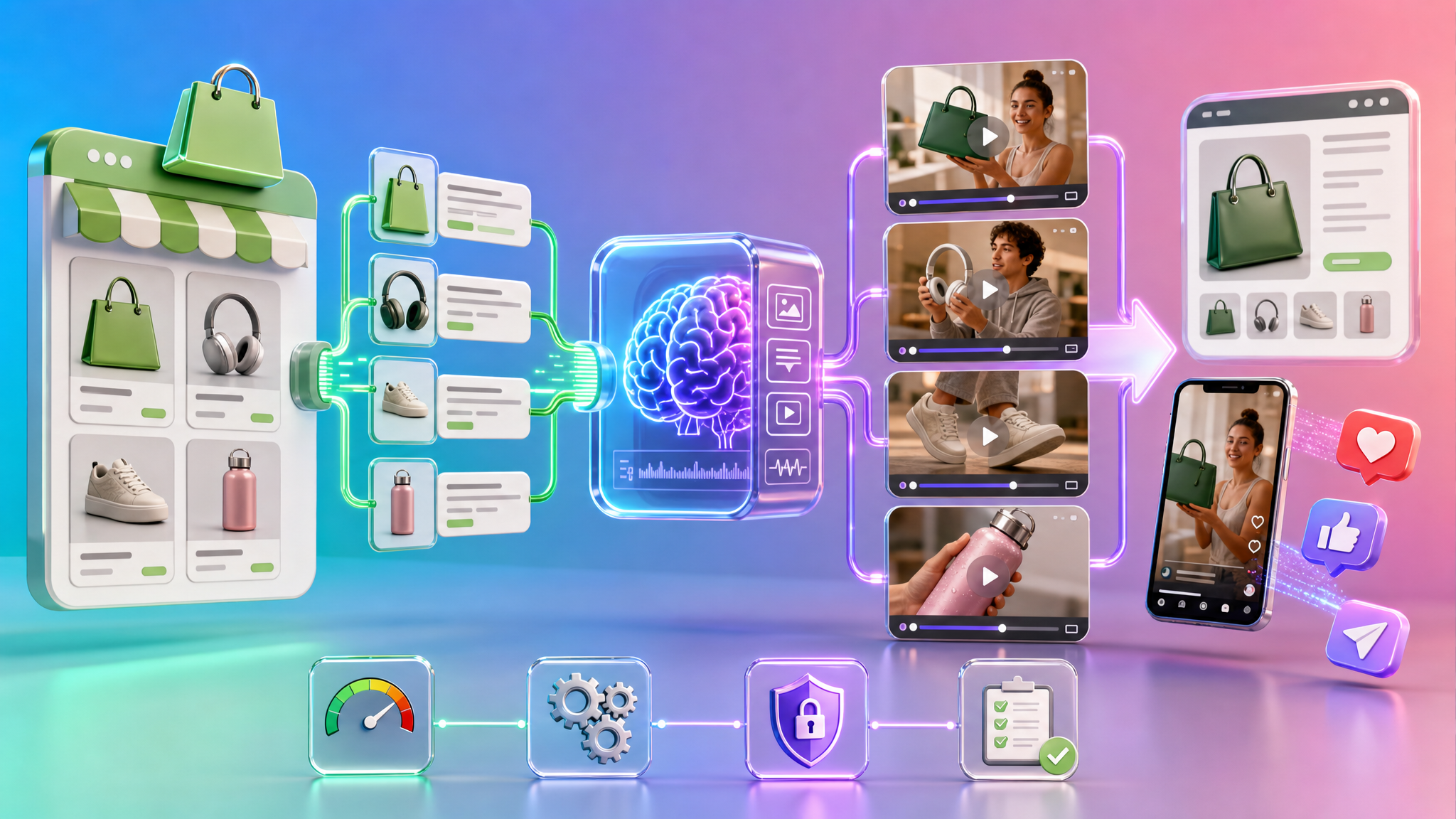
If you want AI to auto‑generate UGC‑style product demo videos from your store, connect your Shopify data by either installing a native app or wiring Shopify’s APIs to an automation workflow, then select a product (or paste a product page URL). The AI tool will read approved product data (for example title, images, price, and description) and generate a short hook–body–CTA video you can publish to product pages or export for ads, with further automation available for larger catalogs.
What does “connecting Shopify data to an AI UGC video tool” mean?
Connecting means authorizing an AI app or connector to read specific Shopify data so it can turn your product catalog (titles, images, descriptions, variants, prices, and approved fields) into auto‑generated UGC‑style video demos or ads. Shopify provides a standardized flow: install the AI app or connector, authenticate in the Shopify admin, review/approve the requested data access scopes (for example products, orders, customers), and then allow the tool to read/write within those scopes.
How do you connect—apps vs. APIs?
- Use a native app (fastest): Several AI video apps available through the Shopify app ecosystem are built to auto‑generate UGC‑style demos/ads by pulling product data directly from your store. After installation and authentication in the Shopify admin, you approve the requested scopes (commonly product catalog access). Many of these tools run as embedded apps, letting you browse your product catalog from inside the app, pick a product, scan its info, and generate a video.
- Use APIs plus an automation platform (fully automated): You can build a workflow where new or updated products in Shopify trigger an automation that sends the product name, image, and description to an AI video generator. The pipeline can then script a short UGC video, produce a vertical 9:16 asset, optionally format/transcode it, and distribute across multiple social channels—end‑to‑end without manual steps.
What product data do AI tools typically use, and how?
Once connected and authorized, many AI tools can access product catalog data depending on granted permissions and the tool’s design. That often includes titles, descriptions, images, variants, prices, and in some cases reviews or metafields.
| Shopify data | How AI tools commonly use it in UGC videos |
|---|---|
| Title/product name | On‑screen intro, first line of the script, and captions. |
| Images (gallery, thumbnails) | Visuals for scenes; may be analyzed to position benefits. |
| Description/key benefits | Script generation, especially the hook–body–CTA structure. |
| Variants/options | Mentions in script or overlays showing choices. |
| Price | On‑screen price callouts and CTAs. |
| Reviews/metafields (if permitted) | Social proof snippets or feature bullets in captions/VO. |
How do UGC video tools turn a product page into a video?
- Start from a PDP URL or product selector: Many tools let you paste a product detail page URL; others provide an internal product selector after you connect your store. The tool parses the product to extract title, images, description, key benefits, and price.
- Auto‑generate performance‑style scripts: Commonly 15–30 seconds with a hook–body–CTA framework, derived from your product metadata.
- Create visuals and presenters: Some tools let you choose an AI character/avatar matched to a buyer demographic, combine it with product imagery or your uploaded footage, and auto‑compose scenes.
- Add voiceover and captions: Pipelines often provide AI voiceovers, emotion‑aware delivery, and burn‑in captions suitable for short‑form placements.
- Export vertical ad files or embed: Outputs usually include vertical (9:16) videos for short‑form feeds. Some tools also support shoppable or dynamic video widgets you can place on product pages.
Can these videos publish to my storefront or just to ads?
- Direct publishing to Shopify: Certain solutions can push approved videos or embed codes to your product gallery or store file library, attaching to specific products. Others use Shopify APIs and Liquid to map product IDs to video assets and inject the video into product templates automatically.
- Ad‑ready exports: Many tools focus on downloadable 9:16 masters and variations intended for social ad platforms and short‑form feeds rather than in‑store embedding.
Can I automate across a large catalog?
- Triggers from product changes: Automation platforms can watch for new or updated products, send product data to an AI video generator, script hooks/captions/hashtags via a language model, format the output, and distribute to multiple social channels—automatically.
- API‑driven placement on PDPs: Some systems script against Shopify APIs and use Liquid so that when a product reaches a specific state (for example description finalized), an automated job generates a video, transcodes it, and places it on the product page via an AIGC task queue—no manual uploads.
Best‑practice setup for first‑time merchants
- Start with one hero product: Guides for Shopify‑focused AI UGC recommend beginning with a single, high‑margin product with a clear primary benefit. It’s easier to test and iterate before scaling.
- Use proven timing beats: A common pattern for short UGC demos is roughly 0–3 seconds hook, 3–8 seconds product intro, 8–18 seconds demo with real product imagery/footage, 18–22 seconds CTA. Many AI script engines aim for this structure.
- Keep data scopes minimal: During installation, approve only the data the tool needs (often product catalog). Shopify’s flow is designed so you can review and consent to scopes before the tool can interact with your store.
Step‑by‑step quick start (native app path)
- Install an AI UGC video app from the Shopify app ecosystem.
- Authenticate via the Shopify admin and review/approve requested scopes (commonly products; sometimes orders/customers depending on features). Approve only what you need.
- Seed the video by either selecting a product inside the app or pasting the product page URL. The tool will parse product data it’s authorized to access.
- Provide a campaign prompt if asked (for example “create a UGC ad for a skincare launch”).
- Choose options the tool offers (for example avatar, voice, captions). Some tools can also stitch in your own product footage.
- Generate, review, and revise the script/video.
- Publish: either push to the product page (if supported) or export 9:16 files for ads and organic posts.
Step‑by‑step quick start (API + automation path)
- In your automation platform, set a trigger for “new or updated product” in Shopify.
- Pass the product name, primary image, and description to an AI video generator.
- Generate a 12–30 second UGC‑style video, voiceover, and captions; transcode/format as needed.
- Distribute automatically across selected social channels, or write back the video/URL to Shopify for PDP embedding.
Governance, privacy, and data access
- Review scopes carefully: Shopify emphasizes reviewing the exact data an AI tool requests (products, customers, orders). Approve only if you’re comfortable with the scope.
- Understand write‑backs: Once connected, a tool can read or write within granted scopes (for example updating product content or writing video asset references). Confirm this behavior before approving.
Troubleshooting tips grounded in how these tools work
- The app can’t see your products: Reinstall or update permissions to include product catalog access.
- The PDP URL won’t parse: Ensure the URL is a live product page and that the app supports URL‑based parsing; alternatively select the product via the app’s internal catalog picker.
- Videos don’t appear on PDPs after generation: Verify the tool has write access and that your theme’s Liquid templates are set to display the inserted video or widget.
Checklist to go live this week
- Pick one hero product with strong visuals.
- Choose your connection method: native app for speed, or APIs + automation for scale.
- Approve only product‑level scopes during install.
- Seed the first video via internal selector or PDP URL.
- Use a hook–body–CTA script and vertical 9:16 output.
- Publish to the product page or export for ads; consider automation to cross‑post to major social channels.
Frequently asked questions
- What’s the fastest way to connect my store to an AI UGC video tool?
- Install a native AI video app, authenticate in the Shopify admin, and approve product data scopes. Then either select a product inside the app or paste its product page URL so the tool can parse title, images, description, and price to generate your first video.
- Can I limit access to only product data when I connect?
- Yes. Shopify’s connection flow lets you review and approve the exact data access levels an app requests. You can limit access to products and avoid granting customer or order data if the tool doesn’t need it.
- Do I have to upload assets, or will the tool pull from my product page?
- Many tools can pull title, images, and key details directly from a product page URL or your internal product catalog. Some also let you upload your own product footage to combine with AI avatars, scripts, and voiceovers.
- Can the process be fully automated across channels?
- Yes. An automation workflow can trigger on new or updated products, send the data to an AI video generator, create a short UGC video with captions, format it, and auto‑post to multiple social platforms. Some systems can also write the video or embed code back to the product page using APIs and Liquid.